

Beta notice: The new Route Editor is still in beta testing and new features are being added.
You can switch back to the old editor at any time with the Use old editor link at the top of the editor.
If you find a bug, please report it in the Bug Tracker.
The new Route Editor replaces the old route opening and editing page. You can still open and edit routes in the same way, but much more now happens on one page. You can also assign the route to an aircraft directly in the editor, without visiting the Scheduling page.
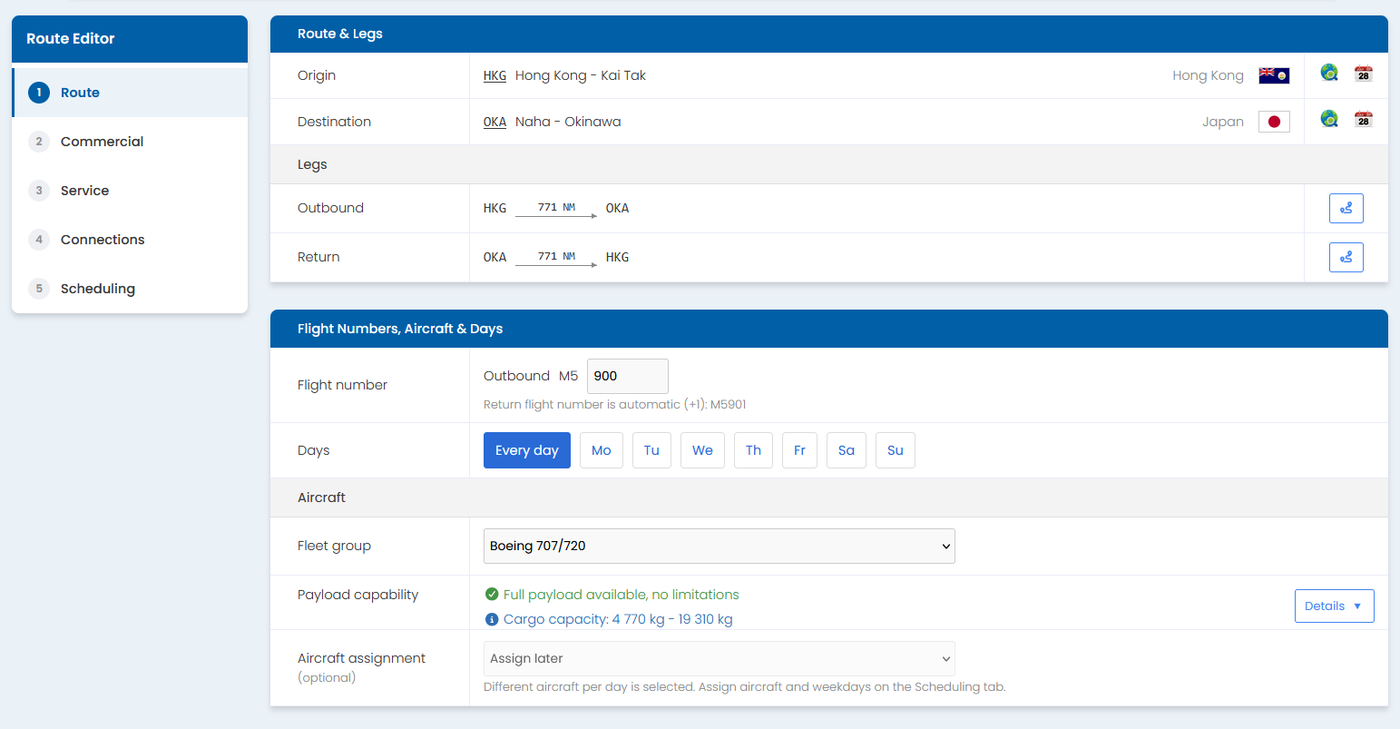
New features in a nutshell
One editor, multiple tabs: Route, Commercial, Service, Connections and Scheduling. Use Next and Back to move through them, and save from any tab. (note; some of the tabs are for future features, and will not be visible if the feature is not released when beta ends)
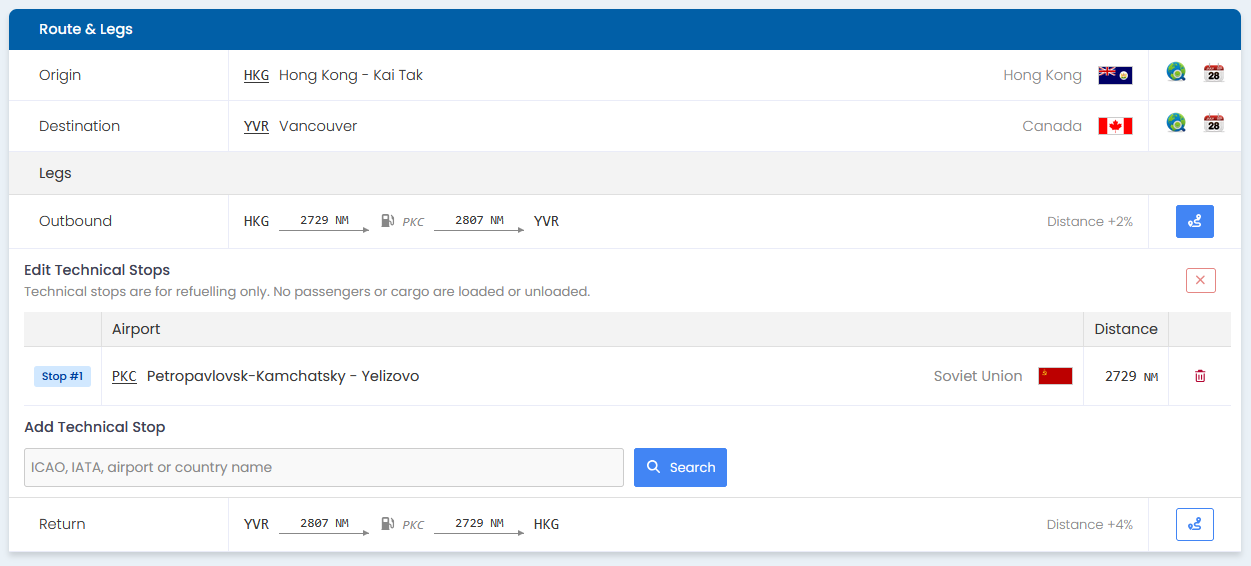
Technical stops directly from the editor: Search for and add refuelling stops directly, and copy them to the other direction in reverse order with one click.
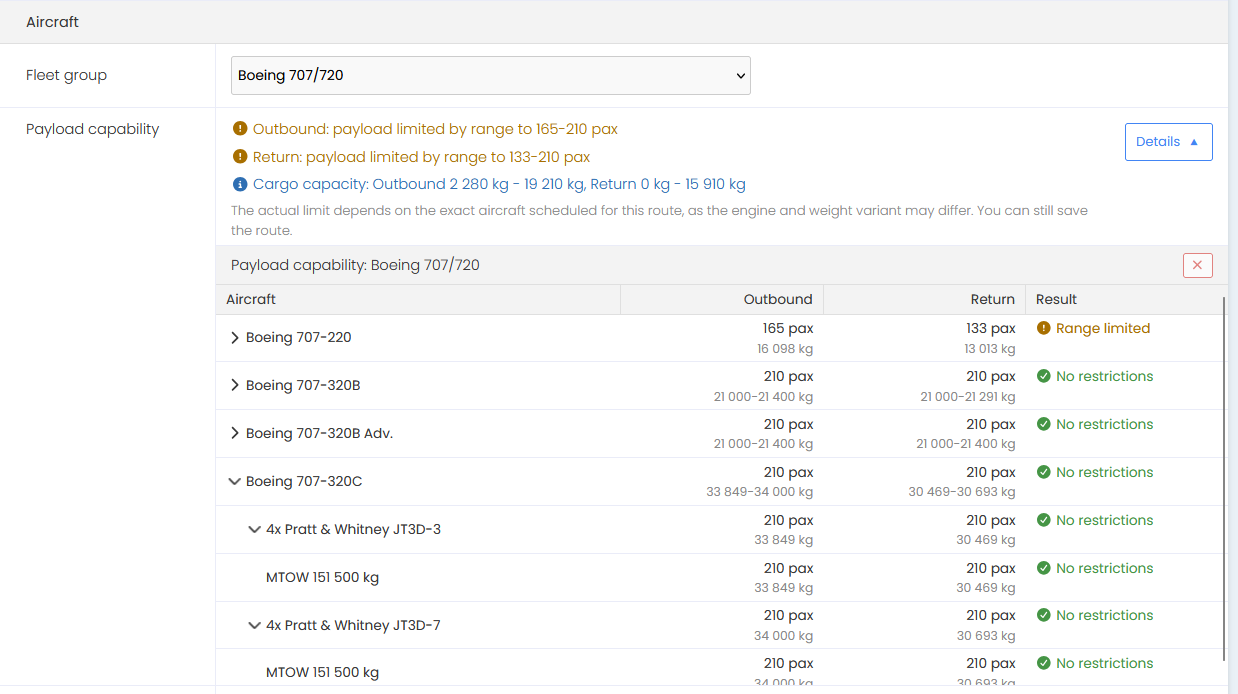
Aircraft payload capability details: See in better detail which engine and weight variants of the fleet can fly the route, and how many passengers and how much payload each direction can carry.
Visual slot availability: A new slot grid for each airport shows free slots, curfews and your own unused slots for every operating day.
Departure warnings: The editor warns you when a departure is too close to your other flights on the same route, because flights that close compete for the same passengers.
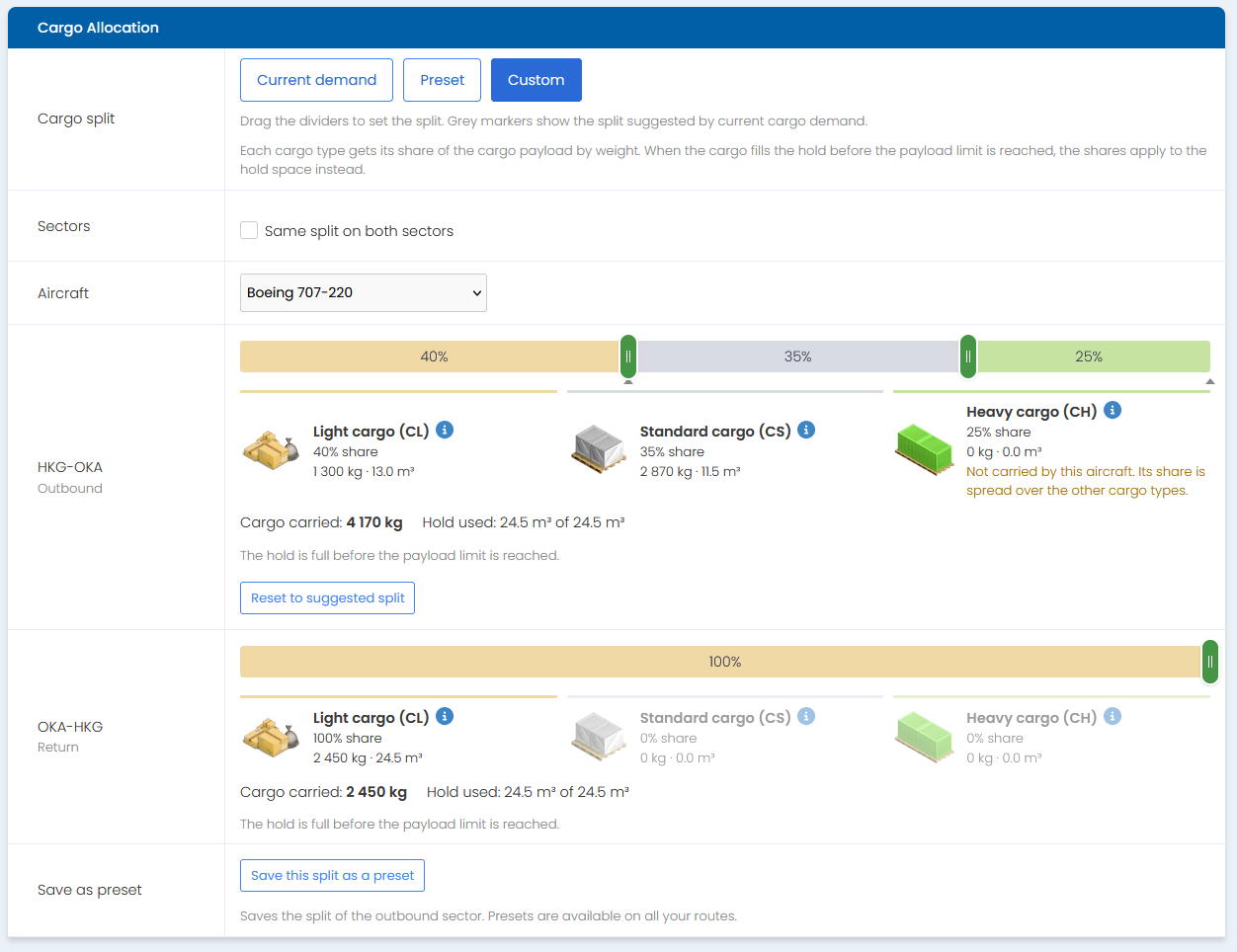
Cargo allocation tools: Use the current demand, a preset, or drag the dividers yourself. You can save up to 10 presets of your own.
Price management: Manual prices per class and direction, ±5% steps, bulk changes and a reset. (work in progress still)
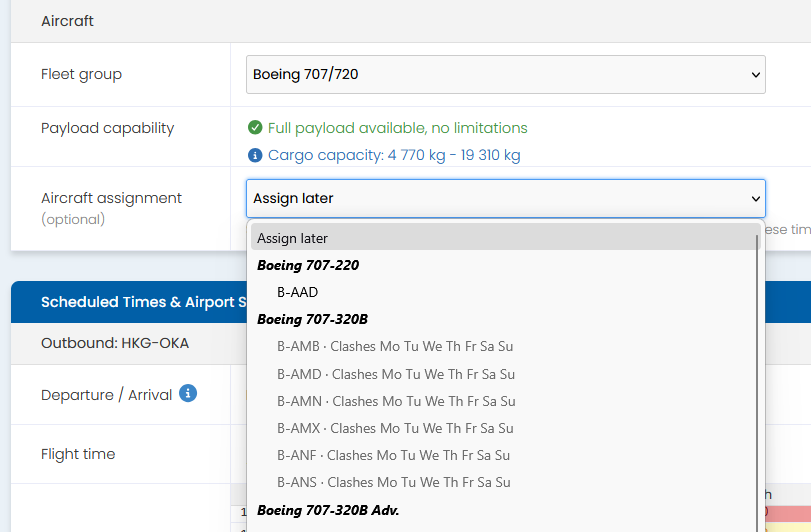
Direct aircraft assignment: Choose the aircraft from the editor without going to Scheduling page. Busy aircraft and aircraft that can’t fly the route are greyed out making the choices easy.
Schedule preview: See the aircraft’s full week with the new route drawn in, before you save.
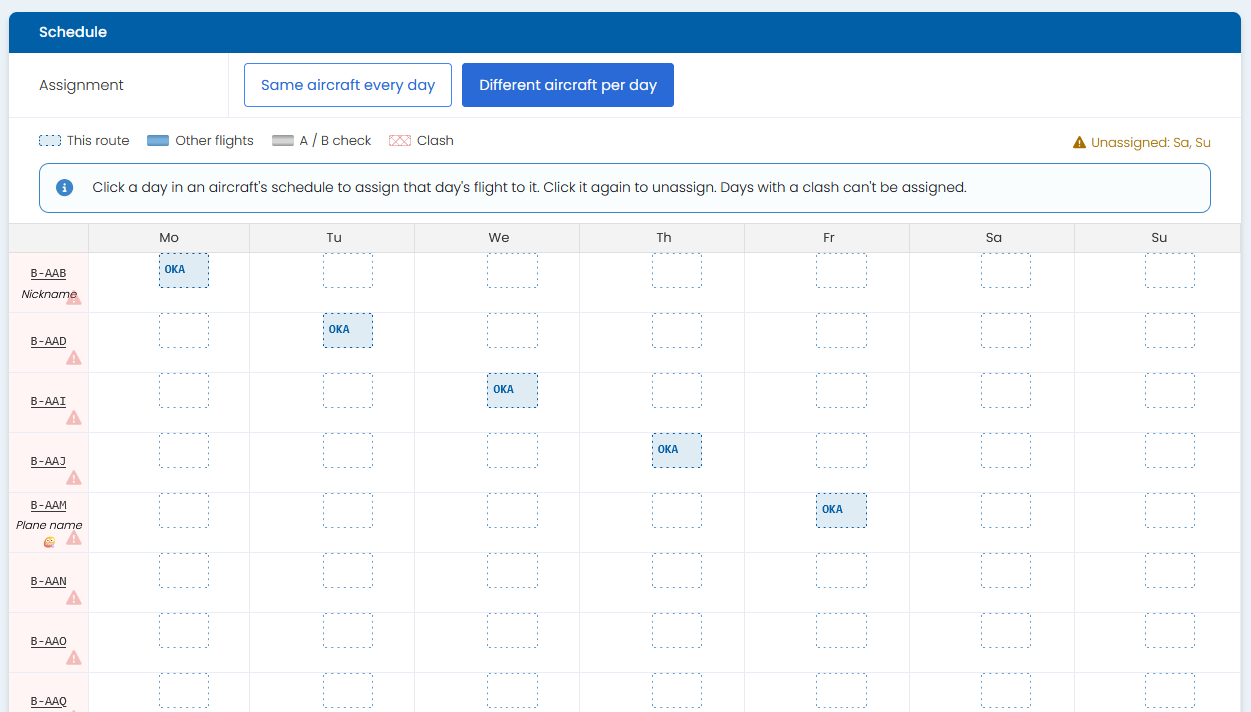
Different aircraft per day, i.e. native 7-day scheduling: Fly one route with different aircraft on different weekdays.
Saved route summary: After saving you get a “receipt” of everything that happened, such as slots bought or moved, airport discounts and the initial route image, with quick links to what you most likely want to do next.
Unsaved changes protection: The editor asks before you leave a route with unsaved changes.
Mobile friendly: The editor and the schedule preview work on phones and tablets too.
Usage highlights
Quick editing
While the editor has been divided into multiple tabs, in order to provide the cleanest user interface and allowance for all nice new features, you can still edit all the essentials from the first tab. There is a save button at the bottom of each tab. This is the “overall” save button that saves and exits the editor.
Technical stops
The techstops selection and editing is now fully inside the route editor.
At the Route & Legs card in the first tab you have the Legs overview with Outbound and Inbound legs. On the right side there is the technical stops manager button that opens the editor. You can edit both route’s directions individually and easily copy the airports to the other leg.
Flight number wizard
On new routes the magic wand button suggests the next free number. It doesn’t take into account possible gaps in your numbering but picks the next available number from the end of the list.
Aircraft payload
The aircraft payload and runway capabilities can be viewed in greater detail using the “Details” button.
You can expand/collapse each model variant to drill down the data for each particular configuration.
Aircraft assignment
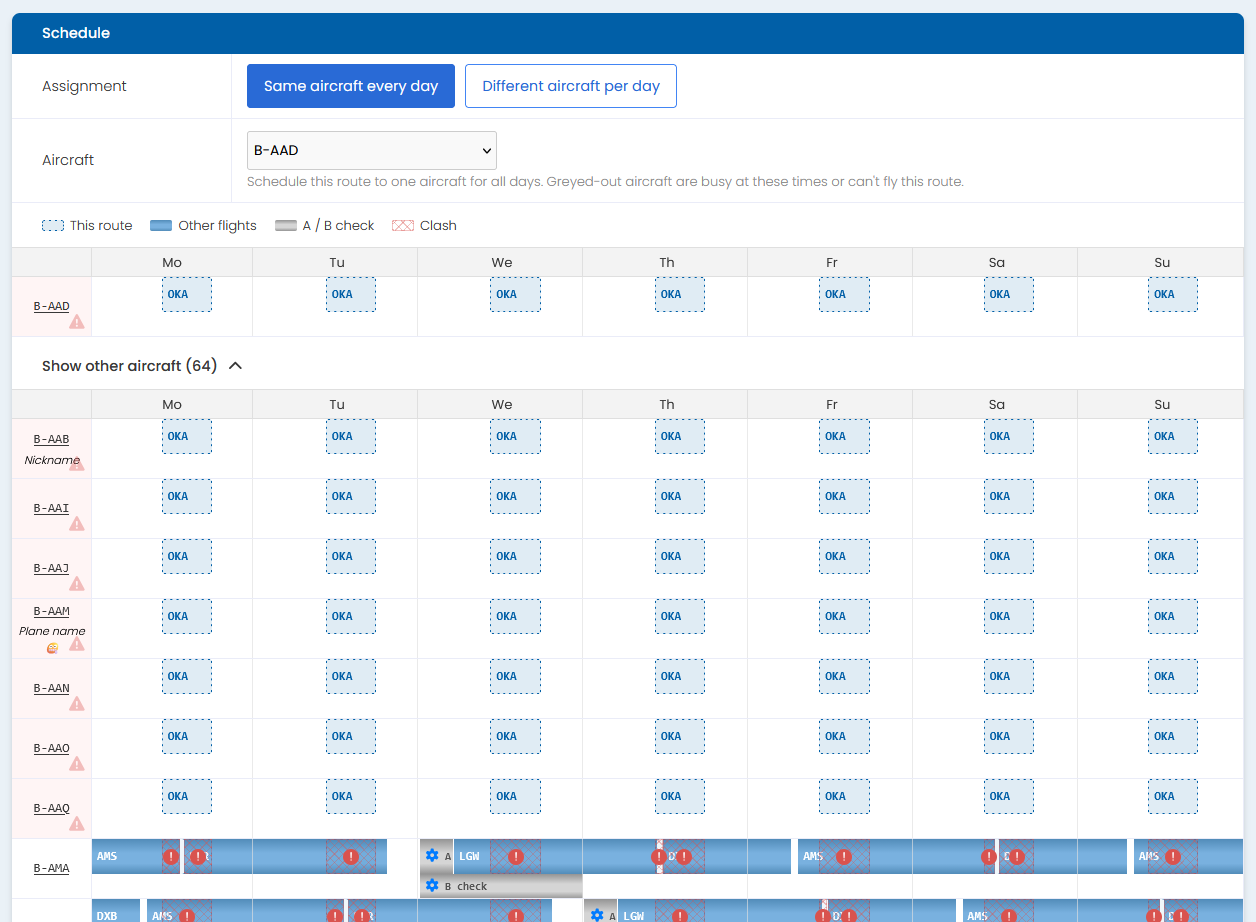
You can perform direct scheduling already at this stage of the editor, if you plan to assign the entire route to single aircraft. Greyed-out aircraft in the list are busy at these times or can’t fly this route for some other reason.
You can see scheduling conflicts already from here, saving time. Saving the route will save also the route to the schedule, so no separate trip to Scheduling page is required.
Airport Slots
The slots are presented in a grid format. It is scrollable and clickable (to set the new departure time).
The airport slot handling rules have changed a bit and in some cases you might receive a slot unavailability error. In most cases the error is correct, but it’s better to check from us. Slot costs and other rules are unchanged.

Cargo Allocation
“Current demand” uses the split suggested by cargo demand on each sector. It’s today’s situation, and not an automatic tool to follow the demand changes (at least not so far).
“Preset” uses a ready split, such as Light cargo focus or Balanced, or one of your own presets.
“Custom” lets you drag the dividers yourself. Grey markers show the split suggested by demand.
Pricing
Is work in progress still.
Scheduling
It is absolutely still possible to just edit the route without aircraft assignment, and do that from the actual Scheduling page like with the old editor!
This works in two modes:
Same aircraft every day: One aircraft flies the route on all operating days. This is the same selection as on the Route tab.
Different aircraft per day: This is the “native 7-day scheduling” mode, explained better a later in this manual’s page.
The user interface of both aims to be very clear and shows where the route can fit and where not. Days with a blue grid mark the flight can fit to that day, and days with a clash are marked in red and can’t be assigned to that aircraft. The same mouse-over highlights work as in the regular Scheduling page to give you more information.
7-day scheduling made easy
Some power-users create their route schedules with a technique called “7-day scheduling”. With the new route editor this is now a native feature of AirwaySim and available for all with easy interface.
The “Create each day as a separate route” function is no longer available. It is not needed anymore.
You can assign the same route’s different weekdays to different individual aircraft of the same fleet group directly from the editor (or also from the regular Scheduling page).
Steps to achieve this are simple:
In route editor, choose your desired fleet group and route’s operating days (usually “Every Day”), and choose the other details such as departure time etc.
Do not select an invidual aircraft from the “Aircraft assignment“ dropdown (though if you do, it is no problem).
In the route editor’s last tab, Scheduling, choose the “Different aircraft per day” option. This opens the scheduling view.
Click a day in an aircraft's schedule grid to assign that day's flight to it. In other words, to assign the Monday’s flight to a certain plane, click on that aircraft’s schedule grid’s Monday’s cell.
Repeat for all weekdays of operation (Mo…Su). If needed, click an assigned day again to unassign it. Finally Save the route.
Done. No separate scheduling needed.
If you later need to edit the route, like for example change the prices or cargo allocation, one edit covers all of the routes you just assigned.
Some other tips
Pick the aircraft from the first tab if assigning to single aircraft: when an aircraft is assigned in “Same aircraft every day’”-mode, the editor uses that exact aircraft’s performance for the flight times and payload, not a typical one from the fleet.
Watch the slot grid: The slot grid is clickable - that changes your departure times! Slot grid is also scrollable so you can view many hours prior and after your departure.
Make your own cargo presets: If you often fly similar cargo routes, save the split as a preset. Presets are available on all your routes. Please note that the “Current Demand” cargo split does not automatically follow changes in the demand - that is still your job!
Pre-plan aircraft’s capability: Payload capability > Details show all the variants of the chosen fleet group. Check it before you lease or buy aircraft for a long route.
Plan ahead without aircraft: You can save a route with “Assign later”. This is the same functionality as with old route editor - choosing the aircraft is not mandatory from the editor.
…and more to come ;)
Known limitations during the beta
The Service and Connections tabs are planned features and do nothing yet.
Price management on mobile is still being improved.
Please send your feedback and bug reports through the Bug Tracker. They help us finish the editor for everyone.