

Aircraft groups are named sets of your own aircraft, for example “HEL A320 rotation”. Use them to find aircraft quickly and to spread a route’s weekdays over several aircraft at once.
Groups only help you view and assign aircraft. They don’t change any scheduling rules. Each aircraft still has to be able to fly the route, and every save is checked as usual.
Basics
You can create any number of groups, with any number of aircraft in each.
Group names are 1-40 characters long and must be unique within your airline.
An aircraft belongs to only one group at a time. Adding it to another group moves it there.
The aircraft in a group have a rotation order that you set. This order decides which aircraft gets which weekday.
An aircraft you sell, scrap, lease out or otherwise lose leaves its group automatically.
Managing Groups
Open the Aircraft Groups window from:
Manage groups in the Route Editor’s Scheduling tab, the Assign Flight Days window from Scheduling or Set Registration from any aircraft info page or tooltip.
Add to group or Change group in an aircraft’s tooltip on the Scheduling page.
My Aircraft: tick aircraft and choose Add to aircraft group from the ‘With selected’ menu at the bottom of the listing. On an aircraft’s own page, use the Manage groups link.
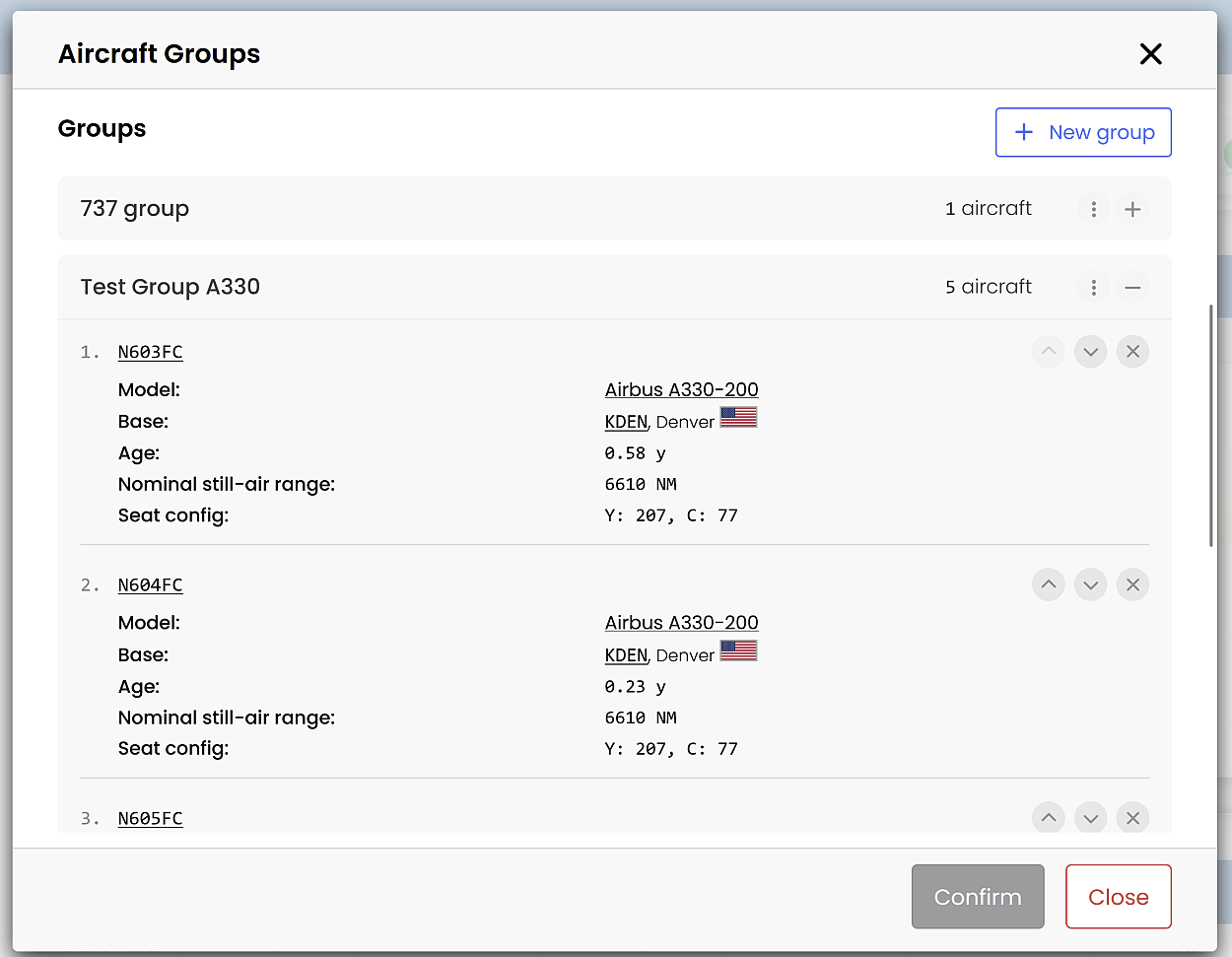
In the window you can:
Create a group with New group.
Add aircraft: search by registration, nickname, model, fleet or base. Tick the aircraft you want, choose the group and confirm. New aircraft go to the end of the rotation order.
Change the order with Move Up and Move Down, or take an aircraft out with Remove from Group icons on the right side of the listing.
Rename or delete a group from its functions menu. Deleting a group does not affect its aircraft nor the scheduled routes. Grouping is only your internal management tool.
Every change is saved immediately.
Scheduling Page
Use the Aircraft group filter in the sidebar to show only one group’s aircraft.
An aircraft’s tooltip shows its group, and provides a link to manage it.
The Set Registration menu lets you also choose the aircraft’s group.
Assigning a Route to a Group’s Aircraft
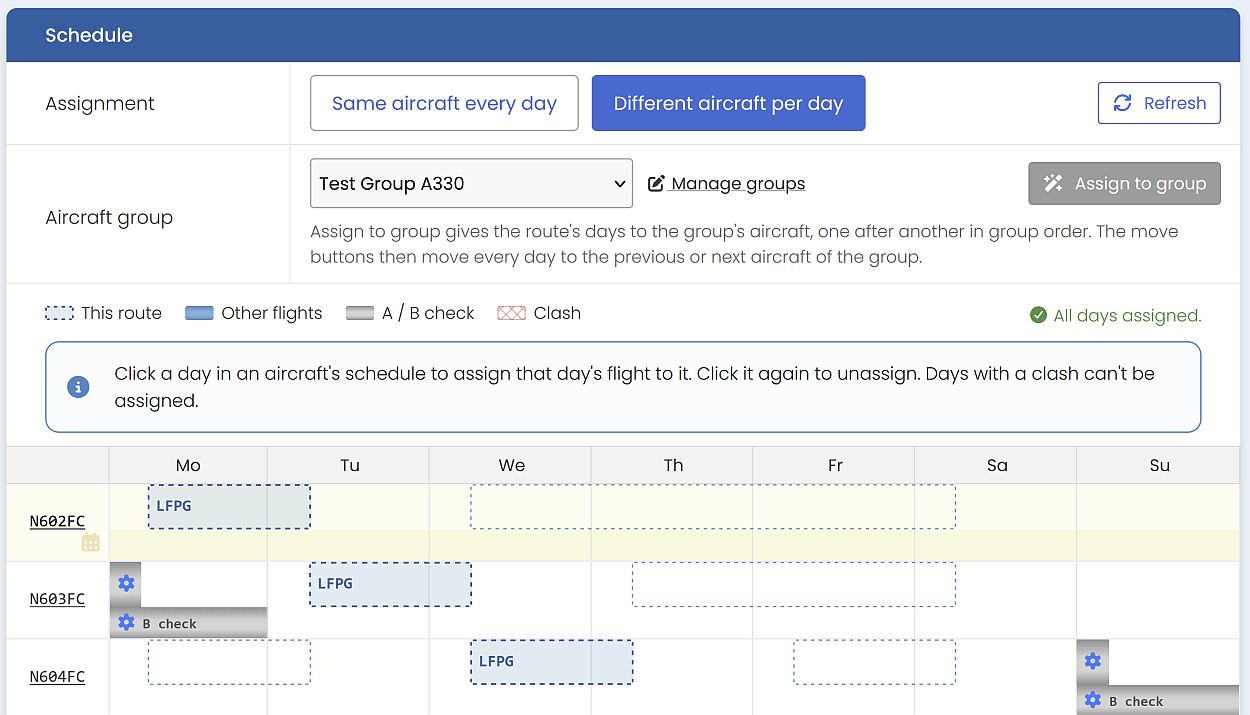
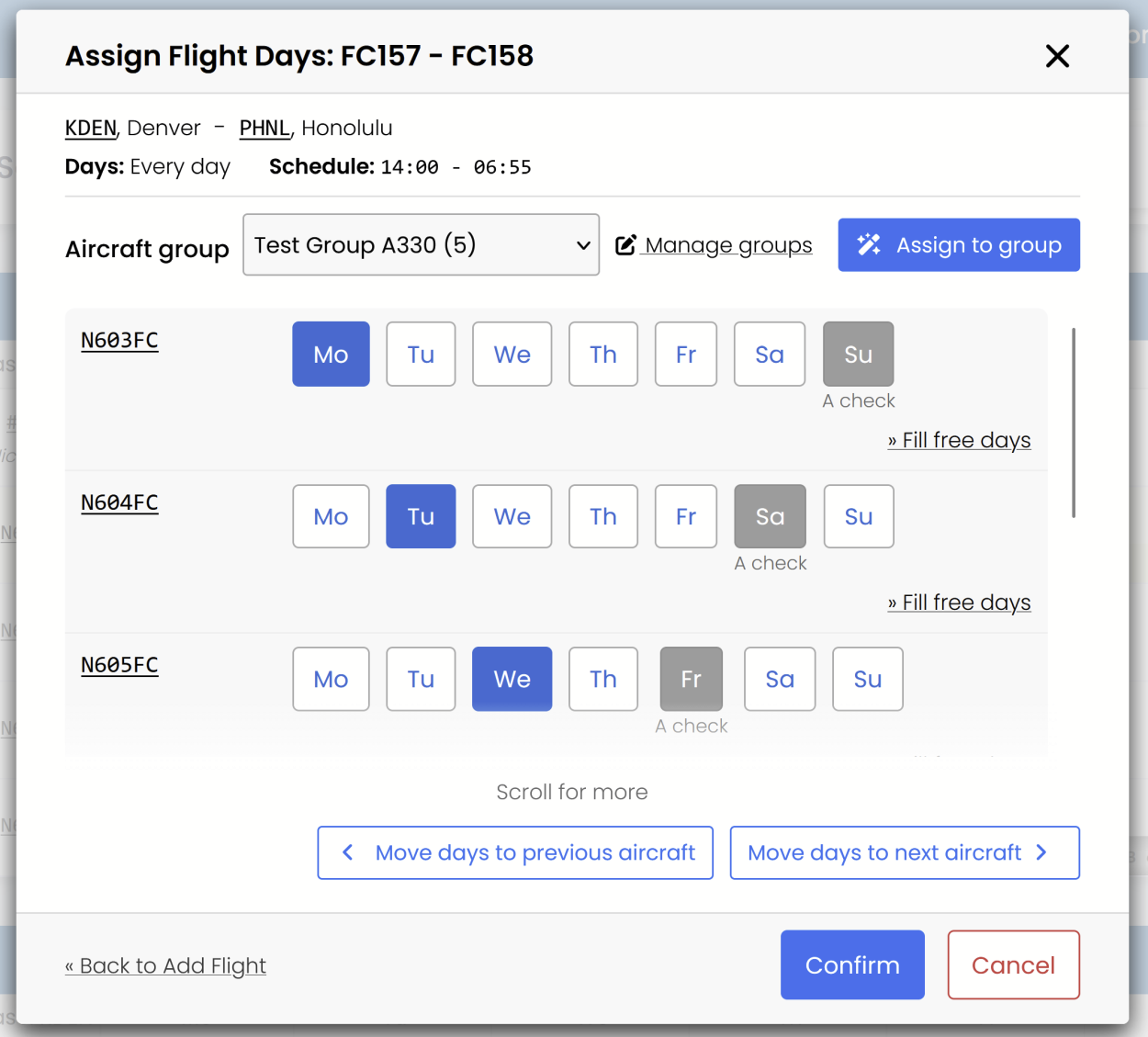
This works in the Route Editor’s Scheduling tab (with Different aircraft per day mode selected) and in the Scheduling’s Assign Flight Days window.
Select the group from Aircraft group. Its aircraft are listed first, in rotation order. The other aircraft are under Show other aircraft.
Click Assign to group to automatically assign the route to these aircraft. The route’s operating days go to the group’s aircraft one after another. For example, three aircraft on a daily route fly 1-2-3-1-2-3-1.
Use Move days to previous aircraft or Move days to next aircraft at the bottom of the screen to move the whole week by one aircraft.
Check the preview and save. Nothing is saved before that.
Route Editor - Scheduling tab:
Scheduling - Assign Flight Days view:
Good to know:
An aircraft that is busy or would clash on a day is skipped, and that day goes to the next suitable aircraft.
Days flown by aircraft outside the group are reassigned to the group. Days already flown by group aircraft are kept.
If some group aircraft are in another fleet or at another base, a warning shows how many can’t fly the route.
If Assign to group button is greyed out, hover over it to see the reason.
Save as Group
If you have assigned a route’s days to two or more aircraft by hand, Save as group in the Route Editor turns them into a new group. To see the button, All aircraft must be selected in the group selection.